Interactive Optimization Visualizer
Documentation for running and deploying the application.
1. About the Project and System Requirements
The application runs in an isolated Debian 13 (XFCE) virtual environment with a numerical optimization engine written in Julia. The virtual machine is completely self-contained and operates fully offline without requiring network connectivity.
- Supported host operating systems: Windows 10/11, macOS, or Linux
- Virtualization software: Oracle VM VirtualBox (version 7.0+)
- Hardware requirements: At least 8 GB RAM (12+ GB recommended), 20 GB free disk space, and hardware virtualization enabled in BIOS/UEFI (Intel VT-x / AMD-V).
2. Variant A: Quick Start via Virtual Appliance (.ova)
The recommended approach for students. No installation of Julia or configuration of mathematical libraries is required on the host system:
- Install and launch VirtualBox on your computer.
- From the top menu, select File → Import Appliance... (or press
Ctrl + I). - Click the folder icon and select the downloaded
Debian-OptVisualizer.ovafile. - Keep the default settings in the summary dialog and click Finish (or Import). Disk extraction takes about 1–3 minutes.


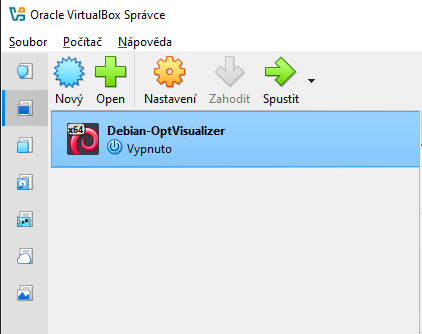
- Once import is complete, select
Debian-OptVisualizerfrom the list on the left and click the green Start button.
3. Application Operation and Controls
The virtual machine boots immediately without bootloader delays and logs in automatically to the desktop as user student without requiring a password.
Launching the Visualizer
Double-click the Optimization Visualizer icon on the desktop.
http://localhost:8080. Do not click the launcher repeatedly while loading.


Troubleshooting and Application Restart
If an optimization algorithm gets stuck or the user interface becomes unresponsive:
- Double-click the Restart Visualizer icon on the desktop.
- The script terminates stuck background processes and launches a fresh instance of both the backend and the browser.
4. Shutting Down
When finished, shut down the virtual machine safely by clicking the button on the right end of the XFCE panel and selecting Shut Down.
5. Variant B: Environment Replication and Development (for Administrators and Developers)
This procedure describes how to build a clean Debian 13 system from scratch.
Step 5.1: Virtual Machine Setup and OS Installation
- Create a 64-bit Debian virtual machine with at least 4 GB RAM, 2 CPU cores, and a 25 GB dynamic disk.
- Boot using the official Debian 13 (Trixie) Netinst ISO.
- During installation, create a standard user named
student. - In package selection, select only
Debian desktop environment,... Xfce, andstandard system utilities.
Step 5.2: Privileges and System Dependencies
Log in as student, open a terminal, and grant passwordless sudo privileges:
su -
usermod -aG sudo student
echo "student ALL=(ALL) NOPASSWD:ALL" > /etc/sudoers.d/student-nopasswd
chmod 0440 /etc/sudoers.d/student-nopasswd
exit
Install build tools, runtime packages, and desktop utilities:
sudo apt update
sudo apt install -y build-essential dkms linux-headers-$(uname -r) git patchelf zenity curl firefox-esr
Step 5.3: Guest Additions and Accessibility Removal
Insert the VirtualBox Guest Additions ISO (Devices → Insert Guest Additions CD image...) and compile the kernel drivers:
sudo mkdir -p /media/cdrom
sudo mount /dev/cdrom /media/cdrom
sudo sh /media/cdrom/VBoxLinuxAdditions.run
sudo umount /media/cdrom
Purge the Orca screen reader and speech synthesizers to ensure silent operation:
sudo apt purge -y orca speech-dispatcher
xfconf-query -c xfce4-session -p /general/AssistiveTechnologies -s false 2>/dev/null
Step 5.4: Autologin and Bootloader Optimization
# Configure automatic login for student
sudo groupadd -r autologin 2>/dev/null || true
sudo gpasswd -a student autologin
sudo sed -i 's/^#autologin-user=.*/autologin-user=student/' /etc/lightdm/lightdm.conf
sudo sed -i 's/^#autologin-user-timeout=.*/autologin-user-timeout=0/' /etc/lightdm/lightdm.conf

# Set GRUB timeout to 0 for instant boot
sudo sed -i 's/^GRUB_TIMEOUT=.*/GRUB_TIMEOUT=0/' /etc/default/grub
sudo update-grub
Step 5.5: Julia Environment and Repository Setup
# 1. Install Juliaup package manager
curl -fsSL https://install.julialang.org | sh -s -- --default-channel 1.10.2 -y
export PATH="$HOME/.juliaup/bin:$PATH"

# 2. Clone the application repository
cd ~
git clone https://github.com/TomasHalmazna/optimization_visualizer.git
cd ~/optimization_visualizer/backend

# 3. Clear executable stack flag for older shared binaries
patchelf --clear-execstack ~/.julia/juliaup/julia-1.10.2+0.x64.linux.gnu/lib/julia/libopenlibm.so 2>/dev/null || true

# 4. Precompile packages for offline usage
julia +1.10.2 --project=. -e 'using Pkg; Pkg.instantiate(); Pkg.precompile()'
Step 5.6: Launch Scripts and Desktop Shortcuts
Create the startup script ~/start_app.sh with a Zenity progress indicator:
cat << 'EOF' > ~/start_app.sh
#!/bin/bash
export PATH="$HOME/.juliaup/bin:$HOME/.local/bin:$PATH"

if timeout 1 bash -c "/dev/null; then
    firefox http://localhost:8080 &
    exit 0
fi

notify-send "Optimization Visualizer" "Starting Julia backend..." -i preferences-system

(
    echo "10" ; echo "# Initializing environment..."
    cd /home/student/optimization_visualizer/backend

    if ! pgrep -f "server.jl" > /dev/null; then
        julia +1.10.2 --project=. server.jl > /home/student/server.log 2>&1 &
    fi

    echo "30" ; echo "# Loading numerical modules..."

    SERVER_UP=0
    for i in {1..90}; do
        if timeout 1 bash -c "/dev/null; then
            SERVER_UP=1
            break
        fi
        PROGRESS=$(( 30 + (i * 65 / 90) ))
        echo "$PROGRESS"
        sleep 1
    done

    if [ $SERVER_UP -eq 1 ]; then
        echo "100" ; echo "# Opening application..."
        sleep 1
    else
        echo "# Server failed to respond. Check ~/server.log"
        sleep 3
        exit 1
    fi
) | zenity --progress --title="Optimization Visualizer" --text="Starting..." --percentage=0 --auto-close --no-cancel --width=400 2>/dev/null

if timeout 1 bash -c "/dev/null; then
    firefox http://localhost:8080 &
fi
EOF
chmod +x ~/start_app.sh
Create the restart script ~/restart_app.sh and desktop launchers:
cat << 'EOF' > ~/restart_app.sh
#!/bin/bash
pkill -f "server.jl"
sleep 2
/home/student/start_app.sh
EOF
chmod +x ~/restart_app.sh

cat << 'EOF' > ~/Desktop/OptimizationVisualizer.desktop
[Desktop Entry]
Version=1.0
Type=Application
Name=Optimization Visualizer
Comment=Launch optimization application
Exec=/home/student/start_app.sh
Icon=system-run
Terminal=false
StartupNotify=true
EOF

cat << 'EOF' > ~/Desktop/RestartVisualizer.desktop
[Desktop Entry]
Version=1.0
Type=Application
Name=Restart Visualizer
Comment=Restart optimization application
Exec=/home/student/restart_app.sh
Icon=view-refresh
Terminal=false
StartupNotify=true
EOF

chmod +x ~/Desktop/*.desktop
Step 5.7: Desktop Cleanup and Appliance Export
# 1. Limit workspaces to a single desktop
xfconf-query -c xfwm4 -p /general/workspace_count -s 1

# 2. Hide default system desktop icons (Trash, Home, Filesystem)
xfconf-query -c xfce4-desktop -p /desktop-icons/file-icons/show-home -n -t bool -s false
xfconf-query -c xfce4-desktop -p /desktop-icons/file-icons/show-trash -n -t bool -s false
xfconf-query -c xfce4-desktop -p /desktop-icons/file-icons/show-filesystem -n -t bool -s false
xfconf-query -c xfce4-desktop -p /desktop-icons/file-icons/show-removable -n -t bool -s false

# 3. Disable desktop wallpaper image in favor of a neutral solid color
xfconf-query -c xfce4-desktop -p /backdrop/screen0/monitorVirtual1/workspace0/image-style -n -t int -s 0 2>/dev/null || true
xfconf-query -c xfce4-desktop -p /backdrop/screen0/monitor0/workspace0/image-style -n -t int -s 0 2>/dev/null || true

# 4. Clean up logs and shut down before export
pkill -f "server.jl"
rm -f ~/server.log
sudo poweroff
Once powered off, disable the virtual network adapter in VirtualBox settings (Settings → Network → uncheck Enable Network Adapter) and export the appliance via File → Export Appliance... (OVF 1.0 format with new MAC address generation).
License and Legal Terms
1. Optimization Visualizer Application: Created as a school work pursuant to Section 60 of Act No. 121/2000 Coll. (the Czech Copyright Act) at the Faculty of Science, Masaryk University. The author grants Masaryk University and the public the right to use and distribute the software under the open-source MIT License.
Author: Mgr. Tomáš Halmazňa (Department of Mathematics and Statistics, Faculty of Science, Masaryk University)
Thesis Supervisor: doc. Mgr. Petr Zemánek, Ph.D.
2. Julia Language Environment: Distributed under the open-source Julia MIT License (Copyright © 2009–2026 Julia contributors).
3. Debian GNU/Linux Operating System: The underlying system and its components are distributed in accordance with the Debian Free Software Guidelines (DFSG).
4. Warranty and Support: The software is provided "AS IS", without warranty of any kind, express or implied. User support is provided as part of teaching optimization courses at the Department of Mathematics and Statistics, SCI MUNI.
This project was supported by the Specific Research in Pure, Applied, and Pedagogical Mathematics 2026 (SV matematika 2026), project no. MUNI/A/1648/2025.